Try to understand the code
The objects
As experienced before (Explore the program), the program is prepared to read and render vectorial and raster images, surfaces and volumes. These objects are implemented in the files rimage.py and vimage.py, that you already know from Lab 1 and the files surface.py and volume.py that we practiced in Session 10 (3D Polygonal Mesh Surfaces) and 11 (3D Volumes). These files are in the zip file you have just downloaded (Explore the program).
The scene
We need an object to keep track of the objects that we read and create. For that, we use the class scene.Scene implemented in the file scene.py. A scene is simply a container of objects: 2D raster images (RImage), surfaces ( (Surface) and volumes (Volume). It also keeps track of the object currently selected and visible (scene.Scene.current_item).
The main window, the central widget, the plot canvas and the vtk widgets
Open image_viewer.py. It contains the implementation of the class image_viewer.MainWindow that inherits from QMainWindow (see QMainWindow). It is very similar to the what was implemented in the examples (see PyQt through examples), but now, it has a new attribute called image_viewer.MainWindow.scene, an instance of the class scene.Scene, the object’s container.
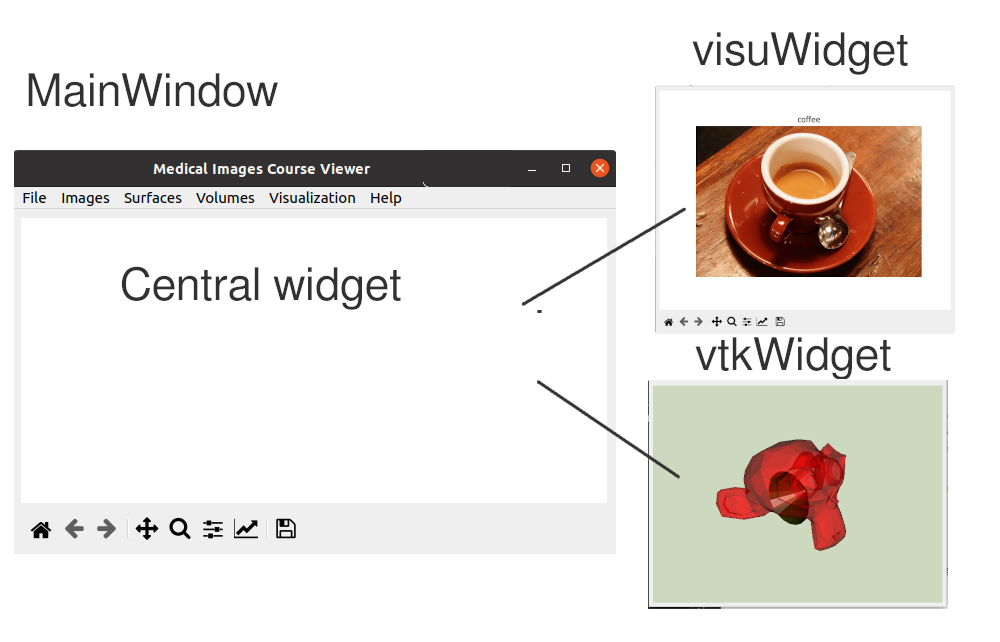
The interface is composed of menus and a central widget which is an instance of the class central.CentralWidget (central.py). The central widget has two attributes: central.CentralWidget.visuwidget and central.CentralWidget.vtkwidget. The former one is an instance of the class plot_canvas.PlotCanvas that inherits from the widget class FigureCanvasQTAgg (see matplolibbackends). It is a widget that bridges matplotlib and PyQT and allows to render in PyQt graphical areas using matplotlib. We use this widegt to render images. The latter attribute is an instance of class vtkwidget.VTKwidget (vtkwidget.py) that inherits from the class QVTKRenderWindowInteractor and will provide the same functionaly as the class Rendering that we used in session 10, but embedded within a PyQt application.
This double widget structure is illustrated below. Of course, we could have visualized he images in the vtkWidget as well and have only one widget for rendering. We have done it this way to provide more continuity with Lab 1.
Reading a file
In the File menu you will be able to read images (vectorial and raster), surfaces and volumes. You can also from the program as in the examples (PyQt through examples). When reading an object a file selector widget is shown. This is a pre-defined widget QFileDialog provided by PyQt. The action associated to the reading actions invoke the reading method of the corresponding classes. For instance, observe that in the class surface.Surface, we have implemented the method to read a surface from an stl file. If you’d like to support other types of files, you just need to add the correspondent method in the class Surface and invoke it if the filename has the given extension (the same for images and volumes).
How are the newly created image titles added to this selection list? With which names? Investigate the method image_viewer.MainWindow.add_item_interface() of class image_viewer.MainWindow.:
def add_item_interface(self, name, cat):
      itemAction = QAction(name, self)
      itemAction.triggered.connect(self.select_action)
      if cat == 'RImage':
          self.menuImageSelection.addAction(itemAction)
      elif cat == 'Surface':
          self.menuSurfaceSelection.addAction(itemAction)
      elif cat == 'Volume':
          self.menuVolumeSelection.addAction(itemAction)
      self.render_current_item()
As you can see, when an item of a given name is added to scene, its name is automatically added to the corresponding selection menu, either that of images, surfaces or volumes, depending on the type (class) of the item.
Adding a new method and a new dialog
In the Images, Surfaces and Volumes menus, there is an option to create objects of each kind procedurally. How would you do to add, for instance, a new method for creating an image with the fantasy method you implemented in Lab work 1 (e.g. concentric circles, stripes, variations of hues …). In the the method create_image_menu(), check how the uniformAction is created
uniformAction = QAction(QIcon("resources/icons/unif.png"), "Uniform", self)
uniformAction.triggered.connect(self.uniform_image)
self.menuImage.addAction(uniformAction)
Whenever the user clicks on the option labelled with the text Uniform, the method MainWindow.uniform_image() will be invoked. To add a new option, just copy and paste these 3 lines and adapt them. For instance:
mynewAction = QAction(QIcon("resources/icons/unif.png"), "Fantasy", self)
mynewAction.triggered.connect(self.mynew_image)
self.menuImage.addAction(mynewAction)
Now, check the method MainWindow.uniform_image():
def uniform_image(self):
     ok, width, height, color = self.get_basic_params()
     if ok:
         im = RImage("uniform", width, height, color)
         self.scene.add_item(im)
         self.add_item_interface(im.name, 'RImage')
First, the method MainWindow.get_basic_params() is invoked to collect the parameters needed to create a uniform image. With these parameters, a new image is created, added to the scene and the name is added to the interface. You have to do the same with your new method (the same for all new methods of creation of objects).
Now, analyze the method MainWindow.get_basic_params(). It opens a dialog and retrieves from it the parameters, casting the string values to their actual type. The dialog is a instance of a class called paramdialog.ParamImageDialog. Analyze it. Would you know how to add a new option? You’ll have to create a new class for each different widget you need.